One client email, four steps
From protected prompt to restored reply.
Read the video transcript
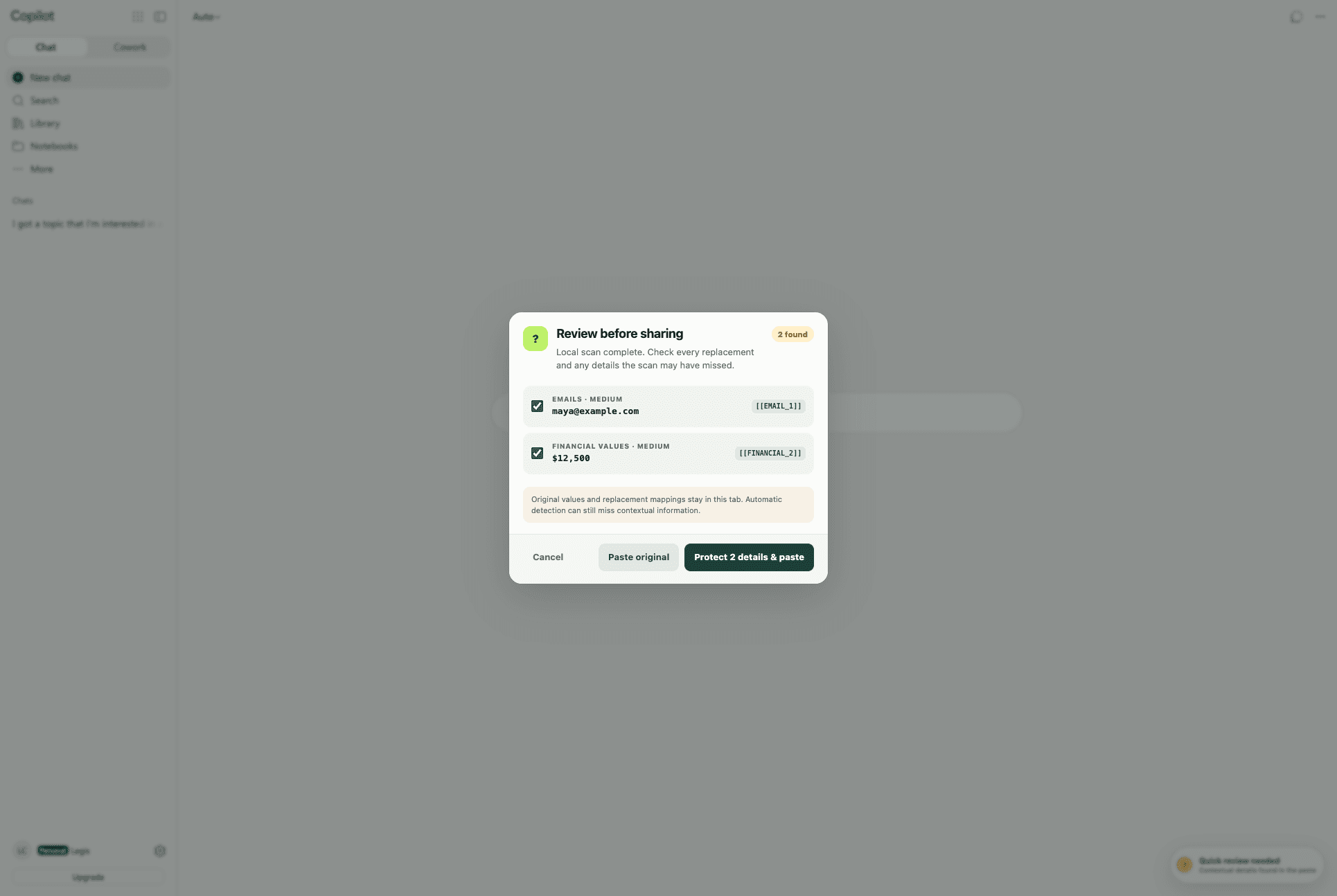
- Review the fictional email address and proposal amount.
- Approve replacement and inspect the placeholders in the composer before sending.
- Copilot replies. The displayed answer contains the locally restored email address and $12,500 amount.
- Switch the sent prompt to its protected view and check the draft before using it.
A fictional client email
Review two details before asking for a draft.
An agency owner wants help following up on a proposal. Copilot needs the writing task and context; the real email address and proposal amount may be unnecessary. The same decision applies to consulting, recruiting, accounting, and other client work.
We tested the personal Copilot web chat at copilot.com in Chrome. LegisComply opened a local review with two findings: [email protected] and $12,500. After approval, both appeared as placeholders in the composer.
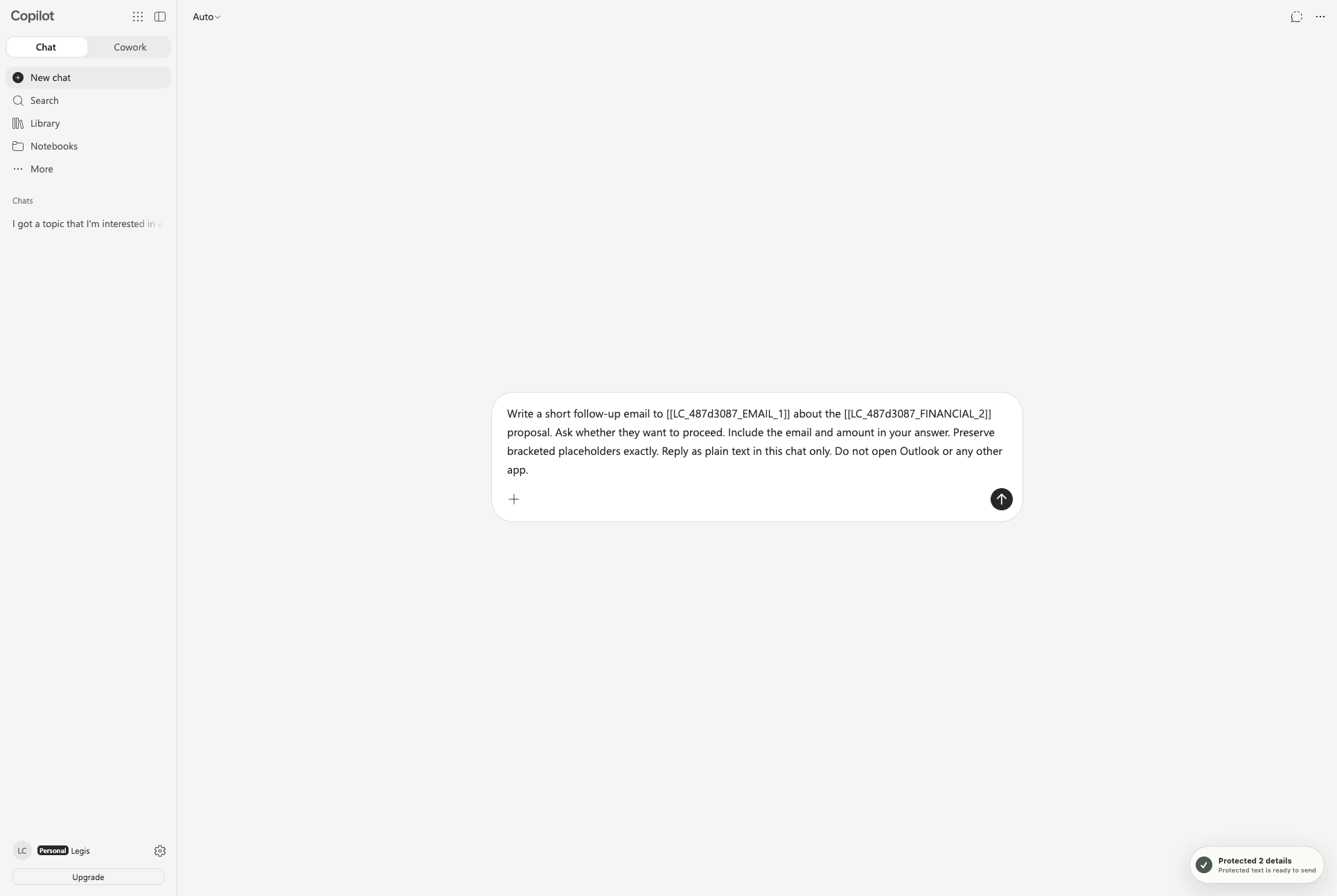
Copilot briefly requested verification before the reply appeared. The completed answer displayed the restored email and $12,500 amount. Switching the sent prompt to its protected view showed the placeholders again while the reply remained restored. The test covered personal web chat; it did not open Outlook or send an email.
Start with fictional information
Try one small task.
Enable LegisComply from its Chrome toolbar menu after reading the disclosure, then refresh Copilot and confirm that the LegisComply status is visible. Start a new chat and paste this fictional prompt. If you do not use the extension, follow the separate browser workflow below.
Write a short follow-up email to [email protected] about the $12,500 proposal. Ask whether they want to proceed. Include the email and amount in your answer. Preserve bracketed placeholders exactly. Reply as plain text in this chat only. Do not open Outlook or any other app.
The extension workflow
Review, replace, send, check.
- 01
Review the suggested replacements.
Our local review found the email and amount. Confirm what should be protected and check for names, codenames, or identifying context the scan missed. Depending on your settings, high-confidence matches may be protected automatically.
- 02
Inspect the Copilot composer.
Choose “Protect 2 details & paste.” In our test, the selected values became
[[LC_487d3087_EMAIL_1]]and[[LC_487d3087_FINANCIAL_2]]. Your token IDs will differ. Stop if an original value you intended to protect remains. - 03
Request a plain-text reply.
Ask Copilot to preserve the placeholders exactly and keep the reply in the chat. Send only after reviewing the protected composer. If Copilot asks for account or human verification, complete it yourself before continuing. Do not use placeholders for numbers needed in calculations.
- 04
Check the returned details.
In our completed test, recognized placeholders were restored locally in the displayed answer. The reply contained the correct email and $12,500 amount. Check your own reply: if a token remains or changes, do not guess its meaning. Compare restored details with the original and review the draft’s wording before using it.
Know what this changes
Local processing still needs human review.
- The extension runs inside Copilot’s page.
- Detection, replacement, and restoration run locally. The website’s scripts may access original typed text and locally restored values. This is not a guarantee that originals are inaccessible to Microsoft.
- Context can identify someone.
- Replacing an email or amount does not guarantee anonymity. Distinctive facts and combinations of details can still identify a client. Share only what the task needs, using tools approved for that work.
- Restoration needs the local mapping.
- Keep the tab open until you finish. Without saved recovery, mappings can be lost on refresh. Optional encrypted local recovery has separate setup and retention controls; it is not a cloud backup.
- This is one Copilot surface.
- Our observations apply to the personal web chat tested here. They do not establish behavior in Word, Excel, Outlook, Teams, or other Microsoft 365 experiences. Installed extension versions and interfaces may differ.
Read security and data flow and why removing names is not anonymization.
A separate browser workflow
Prepare the text before opening Copilot.
Open the LegisComply browser tool, review the fictional sample, and copy the protected text into Copilot. Bring its reply back to the same LegisComply tab to restore recognized placeholders. No account or extension is required for this browser tool. Its mappings stay in memory and disappear when you refresh or close the tab.