Screenshots show development build 0.5.30. Your installed version may have different labels or fewer review controls. The steps below include alternatives. All example information is fictional.
Install and enable protection
Use the extension inside ChatGPT, Claude, Gemini, Perplexity, or Copilot in Chrome. For a desktop or mobile AI app, prepare text with the website tool instead.
Add LegisComply to Chrome.
Open the Chrome Web Store listing, choose Add to Chrome, and confirm installation. Open Chrome’s Extensions menu and select LegisComply. Pin it if you want its icon on the toolbar.
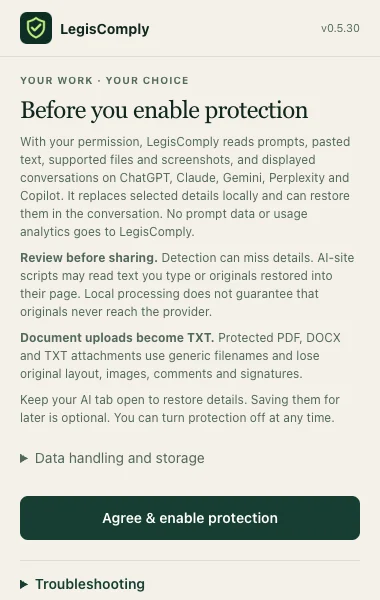
Read the setup information and enable protection.
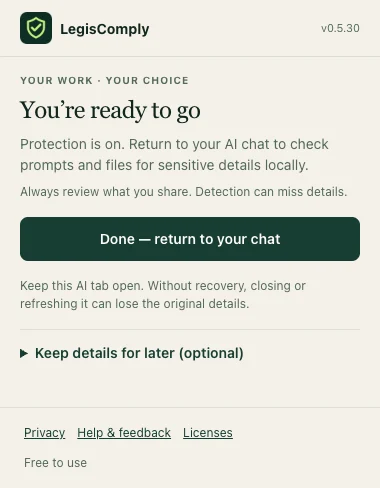
Select Agree & enable protection. When you see You’re ready to go, use Done — return to your chat or Skip for now, depending on your version. Skipping recovery leaves protection enabled.
If your AI chat was open before installation, reload it before starting this first example.
 Open full size ↗
 Open full size ↗
Try your first protected prompt
Write or paste the example into your AI chat.
Use a supported website and send as usual. A review can appear when you paste, send, or attach a file. Depending on your version and settings, some high-confidence replacements happen automatically.
Check the selected replacements.
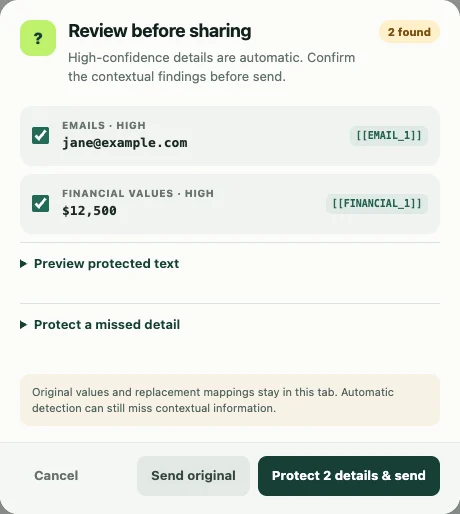
In the review, check the email and amount. Keep selected the details you want replaced. If available, expand Preview protected text to read the copy with placeholders.
For a missed detail, newer versions provide Protect a missed detail: select the text and choose Protect this. If that control is absent, cancel and use the website’s manual protection.
 Open full size ↗
Continue with the protected copy.
Select Protect … & send, paste, or attach, matching the action you started. Send original shares the original text. Choose Cancel if you want to return to the draft.
In versions that offer it, Always review text before sending requests a review even when nothing is detected. Look in More settings if that section is present.
The extension runs inside that page, whose scripts may read typed or restored originals. Use the standalone browser tool to prepare a copy before pasting it into the AI website.
Check the answer and keep details available
The extension can restore recognized placeholders in the displayed conversation while their mappings are available. Compare the answer with your source before using it.
Keep the AI tab open. To restore details after reopening a protected chat, set up Conversation recovery before you close it. Newer versions may call this Keep details for later (optional). Follow the recovery instructions.
For document attachments, the extension uses a protected TXT copy. Read what happens to PDF and Word formatting before attaching a document.
Watch the existing ChatGPT, Claude, Gemini, and Copilot walkthroughs →When something doesn’t look right
Troubleshooting
The extension isn’t doing anything.
Open its toolbar menu and confirm you have enabled protection. Check that you are on a supported AI website in the same Chrome profile. For your first test, reload a chat that was open before installation and try the fictional prompt above. Before reloading a tab with existing protected work, save recovery if available.
My menu doesn’t look like the screenshots.
The screenshots show development build 0.5.30. Older installations may show Skip for now after setup and Conversation recovery directly in the popup. Newer manual-review controls may be absent. You can still prepare and manually review text on the website.
I don’t get a review before every message.
Some high-confidence replacements can happen automatically. If your version offers Always review text before sending, enable it. Otherwise use the website tool when you want to inspect each replacement before copying the text.
A name or project was missed.
Cancel before sharing. Use the manual control described above if your version has it, or add the phrase with Protect something else in the website tool. Review context and distinctive facts as well as names.
Can I use the extension in a desktop AI app?
The Chrome extension works in supported browser pages. For other apps, use the website to prepare text or redact an image, then share the resulting copy in the app.
Still stuck?
Tell us which tool you used, what you clicked, and what happened. Include your extension version if relevant. Cover private details in any screenshot you send.
[email protected]