Start with an email or document
This guide uses the website tool. No extension or account is needed. Your AI chat is a separate destination: you decide when to copy the reviewed text into it.
Open the browser tool.
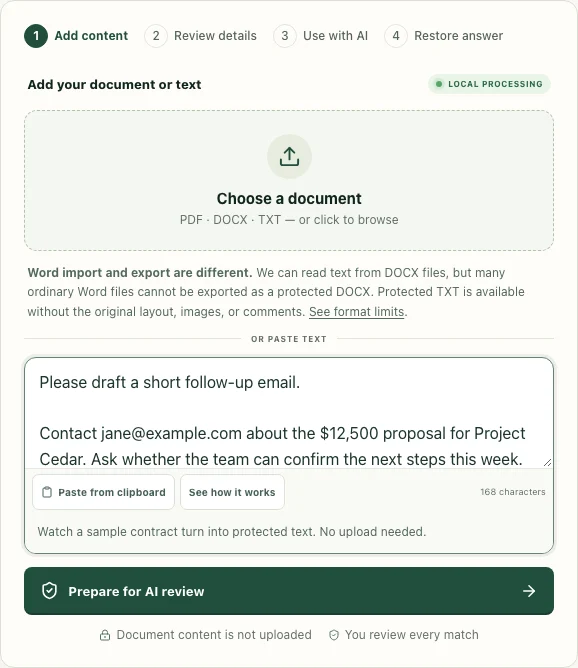
Go to the text and document tool. Paste the example in the text box, or choose a PDF, DOCX, or TXT file from your device.
Check the input, then prepare it for review.
For a file, wait for the text to appear and check that the part you need was extracted. Select Prepare for AI review. An imported file is not yet a protected copy.
 Open full size ↗
Decide what stays private
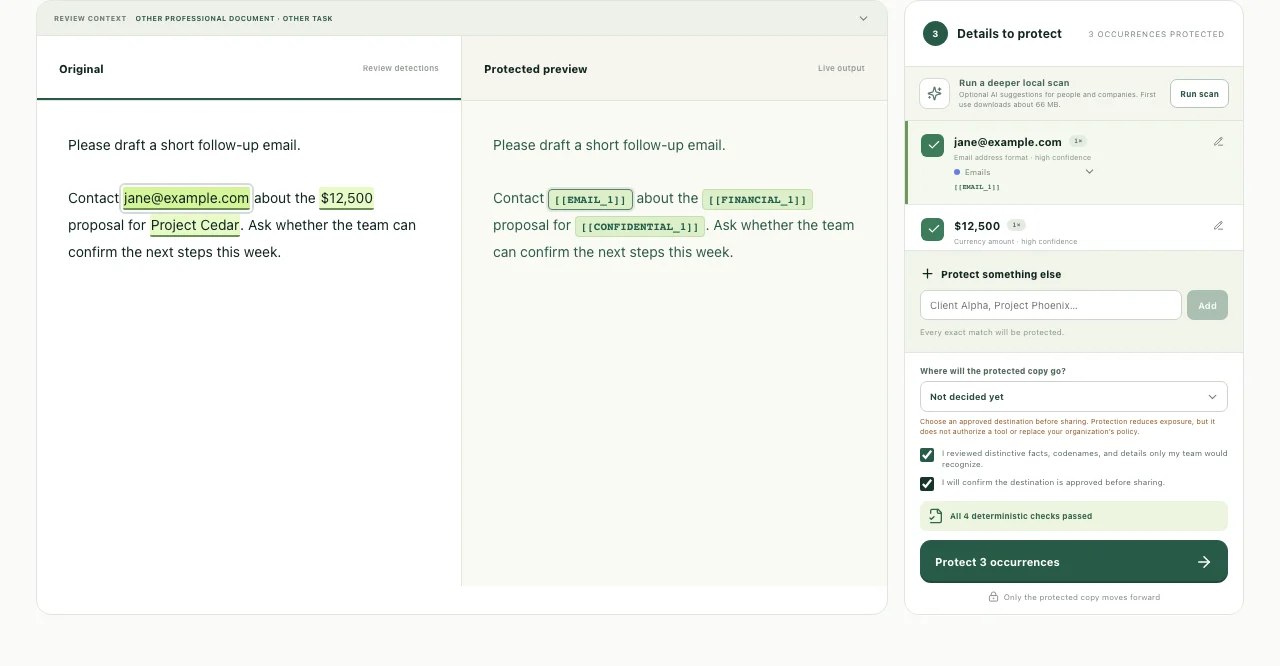
Compare the original and protected preview.
Review the highlighted values and their placeholders. Keep selected the details you want replaced. The example should include [email protected] and $12,500; check rather than assuming that every detail was found.
Add Project Cedar manually.
Enter Project Cedar under Protect something else and select Add. Every exact match is protected. Check the preview again: the project name should now be represented by a placeholder too.
Review the remaining context and confirm.
Look for distinctive facts, codenames, or details that could identify the source even after names are replaced. Choose where the copy will go and complete the review checkboxes. Select Protect … occurrences.
 Open full size ↗
Use the protected copy with AI
For email replies, follow the client-email walkthrough, including a flawed AI draft and its corrections.
Want a complete example with a downloadable Word file and an actual model response? Follow the proposal-review walkthrough.
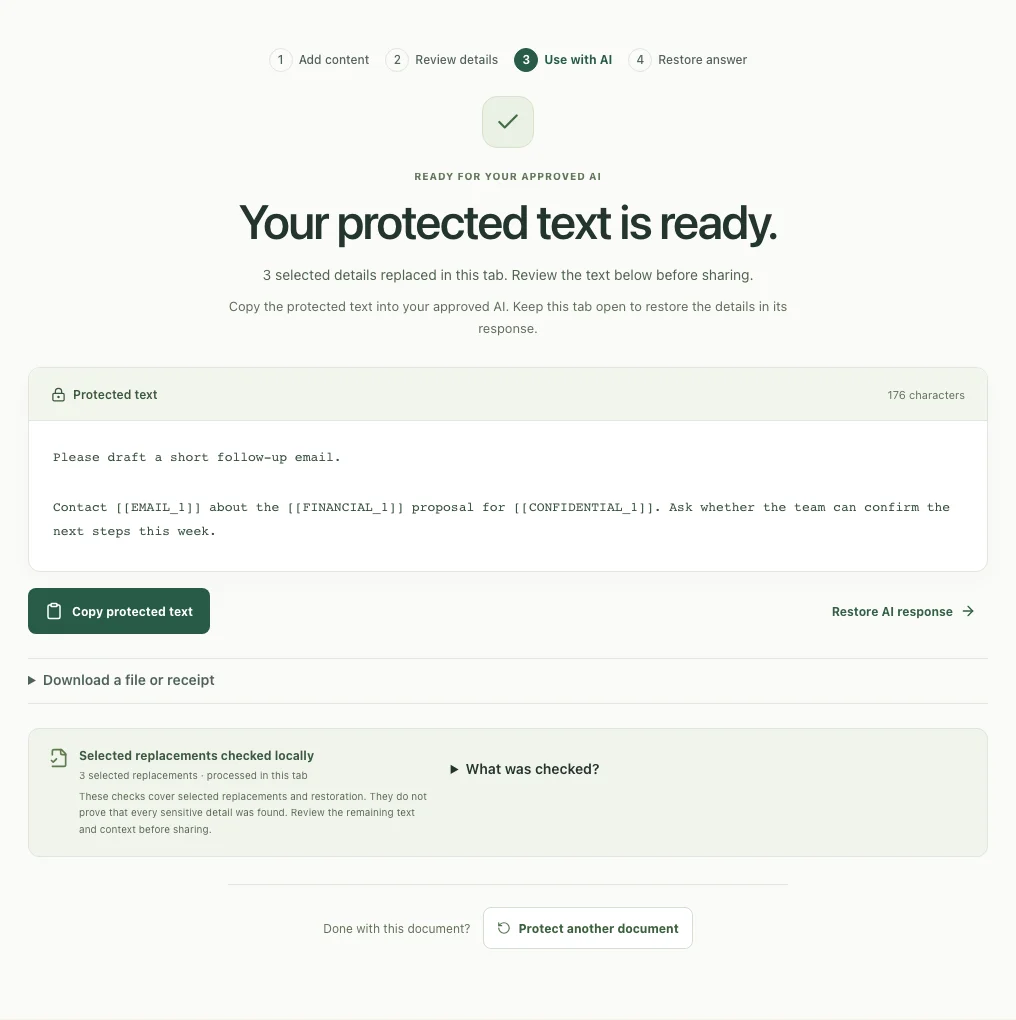
Read and copy the result.
Select Copy protected text. Paste that copy into your approved AI tool. For this example, ask for a brief, polite follow-up and ask the AI to leave placeholders unchanged.
 Open full size ↗
Bring back the answer when you’re ready.
Copy the AI’s response and use Restore AI response in the same LegisComply tab. Follow the answer-restoration guide to replace recognized placeholders and check the result.
Know what your file will contain
| Input | What to check | Output options |
|---|---|---|
| Pasted text / TXT | Review the text and selected replacements. | Copy protected text or download TXT. |
| DOCX | Imported text can be readable even when a protected Word export is unsupported. | Protected TXT; protected DOCX only if the file passes the export checks. |
| Text-based PDF | Check extraction order and the text you plan to share. | Protected text/TXT; a protected PDF option may be available when page-layout data was read. |
| Scanned PDF | Page images may have no extractable text. | Use a text version, or redact an image of the relevant page with the screenshot tool. |
On the result screen, expand Download a file or receipt to see the available options. TXT does not preserve the original layout, images, comments, or signatures. If you use the extension’s document attachment workflow, its protected attachment is a TXT copy.
See the full document export limits. A receipt describes the protection checks; it is not the document to attach to your AI chat.
When something doesn’t look right
Troubleshooting
Copy protected text does not work.
Your browser may block clipboard access. Select the protected text and copy it manually, or expand Download a file or receipt and choose Download .txt. Check that the text contains your reviewed placeholders before pasting it into AI.
My PDF is blank or its text is incomplete.
Check whether the original contains selectable text. A scan may contain only images. Use a text version of the source and review its extraction, or save the relevant page as an image and follow the screenshot-redaction guide.
The Protect button is disabled.
Select at least one detail to protect, finish the review checkboxes, and check the destination selection. If an enhanced scan is running, wait for it to finish. Address any displayed check failure before continuing.
A client name or internal phrase was missed.
Use Protect something else and check the preview. Exact-match protection may not cover abbreviations, spelling variants, or identifying context, so review those separately.
Why can’t I download a protected Word file?
Word export accepts only a limited set of files. Metadata, revisions, images, or unsupported package content can block export even when text import succeeded. Use the protected TXT copy and check that it contains the context your task needs.
Will this upload the document to my AI automatically?
No. In the website workflow you copy or download the result and decide where to share it. The extension workflow works inside the AI chat and can continue the paste, send, or attachment action you started.
Still stuck?
Tell us which tool you used, what you clicked, and what happened. Include your extension version if relevant. Cover private details in any screenshot you send.
[email protected]