Open an image in the standalone tool
Use this workflow for screenshots you plan to attach to an AI chat, email, or support ticket. No extension or account is needed.
Choose, drop, or paste an image.
Open screenshot redaction. Choose a PNG, JPEG, or WebP up to 10 MB and 12 megapixels, drag it into the tool, or paste an image from your clipboard.
Wait for the local text reader.
The tool reads text in your browser and suggests some areas to cover. Check the status before editing. If text recognition fails, use Continue with manual boxes when offered and review the image yourself.
Check every area you want to cover
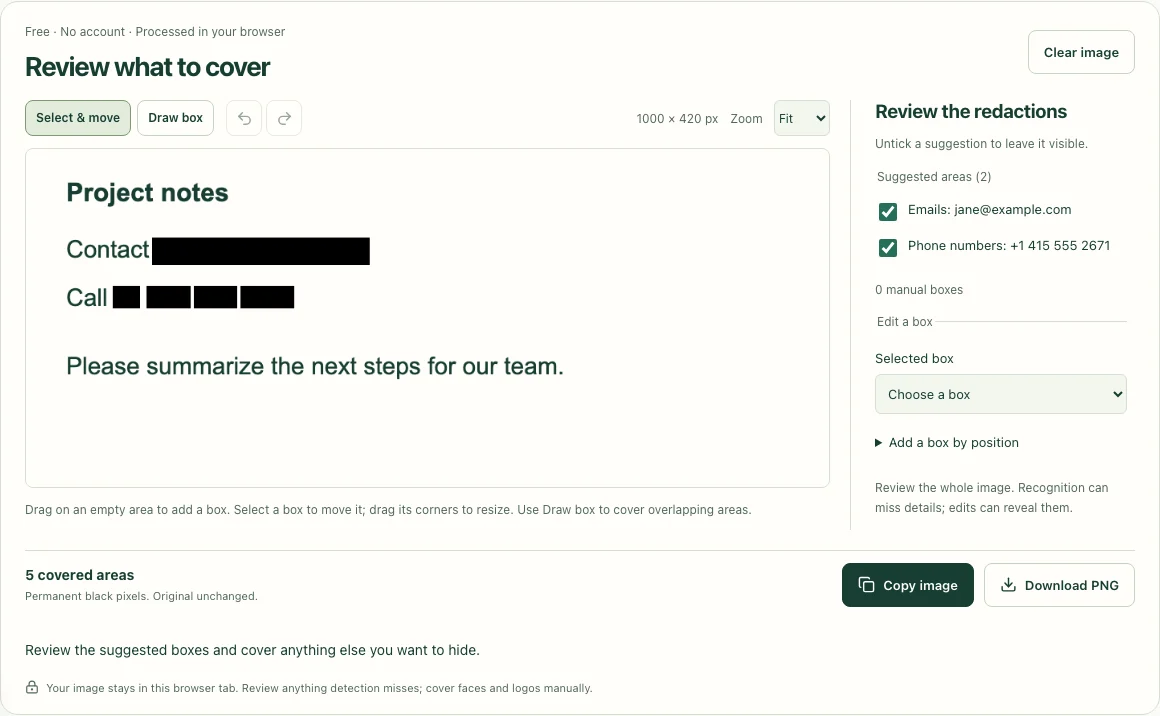
Review the suggested redactions.
Check which suggestions are selected and whether their boxes cover the full sensitive value. Recognition can miss details or select harmless text. Only selected areas are covered in the exported image.
Draw any missing boxes.
Drag over an area of the preview to cover it. Review faces, logos, handwriting, QR codes, window titles, and surrounding context manually. Use the zoom control for small text.
For exact placement, expand Add a box by position, enter Left, Top, Width, and Height in original-image pixels, then select Add box. Use Undo edit if you cover the wrong area.
 Open full size ↗
Look at the whole image once more.
Check that every intended detail is fully covered and that the remaining image still explains your question. At least one redaction must be selected to export a redacted copy.
Download and share the redacted copy
Export a new PNG.
Select Download redacted PNG. The downloaded file is named redacted-screenshot.png. You can also use Copy redacted image if your browser supports it.
Open the exported image before attaching it.
Verify that the intended details are covered in the downloaded file. Attach that copy to your chat, email, or ticket. Keep track of which file is the original so you don’t accidentally attach it instead.
The exported PNG replaces selected areas with solid black pixels. The answer-restoration tool cannot recover them. Your original image stays unchanged.
When something doesn’t look right
Troubleshooting
No private details were detected.
That does not mean the image is ready to share. The reader can miss small, rotated, handwritten, or non-English text, and it does not decide which faces or logos matter. Draw manual boxes and review the whole image.
The reader could not load or finish.
The tool needs its reader files before text recognition can run. If it offers Continue with manual boxes, use that route and cover the relevant areas yourself. Automatic suggestions will not be available for that attempt.
The download button is disabled.
Finish or exit the scanning step as directed and enable at least one suggested or manual redaction. Check that your box has a nonzero width and height and covers part of the image.
Copy redacted image doesn’t work.
Clipboard image support and permissions vary by browser. Use Download redacted PNG and attach the downloaded file instead.
My image is too large or won’t open.
Use PNG, JPEG, or WebP within the 10 MB and 12-megapixel limits. Export a smaller copy from your image tool, then open and review that copy. A PDF needs to be exported as an image of the relevant page first.
Can I change a box after downloading?
While the editing session is still open, adjust or undo the box and download again. You cannot remove black pixels from an already exported copy to recover the original detail.
Still stuck?
Tell us which tool you used, what you clicked, and what happened. Include your extension version if relevant. Cover private details in any screenshot you send.
[email protected]